Publish an Astro blog on GitHub Pages
This guide explains how to create an Astro 7 site from a theme and publish it on GitHub Pages at https://<username>.github.io, using a GitHub Actions workflow that rebuilds the site after every push.
Replace <username> with your GitHub username everywhere it appears. The examples use the username astronaut and the official blog template as the theme.
Before you start
Section titled “Before you start”Install or set up the following before Step 1:
-
Node.js 22.12 or newer. Astro 7 does not run on older versions, and odd-numbered releases such as v23 are not supported. Install the current LTS release from nodejs.org ↗, then confirm the version:
Terminal window node --versionThe output must start with
v22orv24. -
Git installed and configured with your name and email. Check with
git --version. -
A GitHub account. GitHub Pages is free for public repositories.
-
VS Code or another code editor. Run the commands in this guide from the VS Code terminal, PowerShell, or the macOS Terminal.
Step 1: Choose a theme
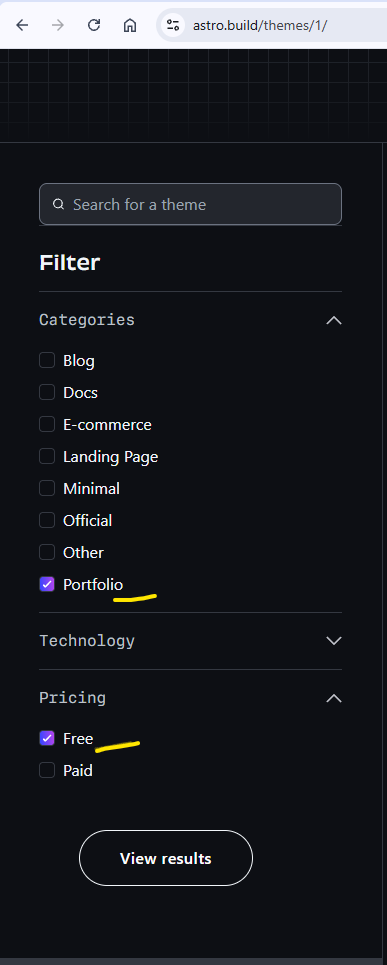
Section titled “Step 1: Choose a theme”A theme is a ready-made Astro project that you customize. Pick one from the Astro themes gallery ↗ before creating the project. Not every theme works on GitHub Pages, so check the following before you decide:
- On the gallery, filter by Free and the category you want, for example Portfolio or Blog.
- Open the theme page and click its GitHub link. Note the repository name in the form
<owner>/<repo>, for exampleEmaSuriano/astro-art-portfolio. You need it in Step 1. - In the repository, open
package.jsonand confirm that theastrodependency starts with^7. Older themes may not build on Node.js 22 or Astro 7. - Open
astro.config.mjsand confirm that it has noadapterline and nooutput: 'server'line. GitHub Pages serves static files only. - Read the README. Skip themes that need an API key or environment variables to build.
- For a first deployment, prefer a theme that does not use Tailwind or React. They work, but they add more places for a build to fail.
Themes that meet these rules:
| Theme | Repository | Category |
|---|---|---|
| Blog (official template) | built in, see Step 1 | Blog |
| Astro Art Portfolio | EmaSuriano/astro-art-portfolio | Portfolio |
| dotcv | tjaugust01/dotcv | Portfolio |
| minrock | rnt-rez/minrock | Portfolio |
Step 2: Create the Astro project
Section titled “Step 2: Create the Astro project”-
Open a terminal in the folder where you keep your projects and run the project wizard with your theme’s repository name:
Terminal window npm create astro@latest -- --template EmaSuriano/astro-art-portfolioTo use the official blog template instead, run the command without the
--templateoption and choose Use blog template when asked how to start the project:Terminal window npm create astro@latestIf npm asks to install
create-astro, answery. -
Answer the prompts as follows. Use the arrow keys to move and Enter to confirm.
Prompt Answer Where should we create your new project? astronaut.github.io(your username followed by.github.io)Install dependencies? Yes Initialize a new git repository? Yes The folder name is also the repository name in Step 2. GitHub publishes a repository named
<username>.github.ioat the root of your personal URL, so no path configuration is needed. -
Open the project folder and start the development server:
Terminal window cd astronaut.github.ionpm run dev -
Open
http://localhost:4321in your browser. The theme’s sample pages appear. Edit a file undersrc/and save: the browser updates without a reload. The theme’s README explains where the content lives. -
Press
Ctrl+Cin the terminal to stop the server when you are done.
Step 3: Create the GitHub repository and push
Section titled “Step 3: Create the GitHub repository and push”-
Sign in to GitHub ↗ and open github.com/new ↗.
-
Fill in the form:
- Repository name:
astronaut.github.io. The name must be exactly your username followed by.github.io, in lowercase. - Visibility: Public.
- Leave Add a README, .gitignore, and license unchecked. The project already has these files.
- Repository name:
-
Click Create repository.
-
Back in the terminal, inside the project folder, commit the project and push it. The wizard already ran
git init, so start with the commit:Terminal window git add .git commit -m "Initial commit"git branch -M maingit remote add origin https://github.com/astronaut/astronaut.github.io.gitgit push -u origin mainGit may open a browser window to sign in to GitHub the first time you push.
-
Refresh the repository page on GitHub. Your files are there, including
package-lock.json. Keep that file in the repository: the deploy action reads it to know that the project uses npm.
Step 4: Set the site URL in the Astro config
Section titled “Step 4: Set the site URL in the Astro config”Astro uses the site value to build correct links in the sitemap and RSS feed. Open astro.config.mjs in the project root. Most themes already contain a site line with the author’s URL. Change it to your GitHub Pages URL, or add the line if it is missing:
export default defineConfig({ site: 'https://astronaut.github.io', // keep the rest of the file as it is});If the theme has a base line, delete it. Some theme authors publish their demo under a path and leave base set to their own repository name, which breaks every link on your site. A base is only needed when your repository has a different name, which is covered in Publish from a repository with a different name.
Step 5: Add the deployment workflow
Section titled “Step 5: Add the deployment workflow”A GitHub Actions workflow is a YAML file that lists commands for GitHub to run after each push. This workflow installs the dependencies, builds the site, and publishes the result to GitHub Pages.
-
In the project root, create the folder
.github/workflows. The leading dot is part of the name. -
Inside it, create a file named
deploy.ymlwith the following content. This is the workflow from the official Astro documentation..github/workflows/deploy.yml name: Deploy to GitHub Pageson:# Run every time you push to the main branchpush:branches: [ main ]# Also allow starting the workflow by hand from the Actions tabworkflow_dispatch:# Allow the workflow to read the repository and publish a Pages deploymentpermissions:contents: readpages: writeid-token: writejobs:build:runs-on: ubuntu-lateststeps:- name: Checkout your repository using gituses: actions/checkout@v7- name: Install, build, and upload your siteuses: withastro/action@v6deploy:needs: buildruns-on: ubuntu-latestenvironment:name: github-pagesurl: ${{ steps.deployment.outputs.page_url }}steps:- name: Deploy to GitHub Pagesid: deploymentuses: actions/deploy-pages@v5YAML is indentation sensitive. Copy the file exactly, using spaces, not tabs.
Step 6: Tell GitHub Pages to use the workflow
Section titled “Step 6: Tell GitHub Pages to use the workflow”- On the repository page on GitHub, open the Settings tab.
- In the left sidebar, click Pages.
- Under Build and deployment, set Source to GitHub Actions.
There is nothing to save. The setting applies immediately.
Step 7: Push and check the deployment
Section titled “Step 7: Push and check the deployment”-
Commit the config change and the workflow, then push:
Terminal window git add .git commit -m "Configure GitHub Pages deployment"git push -
Open the Actions tab on GitHub. A run named Deploy to GitHub Pages appears within a few seconds. Click it to watch the
buildanddeployjobs. A first run takes one to two minutes. -
When both jobs show a green check mark, open
https://astronaut.github.ioin your browser. The site is live. Click through the navigation links to confirm that every page loads with its styling.
If the run shows a red cross, click the failed job to read the log. The Troubleshooting section lists the common causes.
Update the site
Section titled “Update the site”Every push to main publishes a new version. To change the content:
-
Edit or add files where the theme keeps its content. In the official blog template, posts are Markdown files in
src/content/blog/. Copy the frontmatter block (the lines between---) from an existing post and change thetitle,description, andpubDate. Other themes document their content folder in the README. -
Check the change locally with
npm run dev. -
Commit and push:
Terminal window git add .git commit -m "Add my first post"git push
The site updates within a couple of minutes. Do not run npm run build yourself: the workflow does it on GitHub.
Publish from a repository with a different name
Section titled “Publish from a repository with a different name”Follow this section only if the repository is not named <username>.github.io, for example because you already use that name for another site or the assignment requires a specific repository name such as web-blog.
GitHub then serves the site under a path: https://astronaut.github.io/web-blog/. Astro must know that path, and every internal link in the project must include it.
-
In
astro.config.mjs, addbasewith the repository name and a leading slash:astro.config.mjs export default defineConfig({site: 'https://astronaut.github.io',base: '/web-blog',// keep the rest of the file as it is}); -
Fix the theme’s internal links. Most themes write them as
/,/blog, or/about, which point to the root of the domain, not to your site. Find the navigation component (in the official blog template it issrc/components/Header.astro) and prefix each internal link withimport.meta.env.BASE_URL, which Astro fills in frombase:src/components/Header.astro <h2><a href={import.meta.env.BASE_URL}>{SITE_TITLE}</a></h2><div class="internal-links"><HeaderLink href={import.meta.env.BASE_URL}>Home</HeaderLink><HeaderLink href={`${import.meta.env.BASE_URL}blog`}>Blog</HeaderLink><HeaderLink href={`${import.meta.env.BASE_URL}about`}>About</HeaderLink></div>Apply the same change to any other
href="/..."you add later, including links to posts insrc/pages/blog/index.astro. Images referenced with Astro’s<Image />component and imports are handled automatically. -
Check the result locally before pushing. The dev server also uses
base, so the site is athttp://localhost:4321/web-blog/:Terminal window npm run dev
The rest of the procedure (workflow, Pages source, push) is unchanged.
Use a custom domain (optional)
Section titled “Use a custom domain (optional)”To serve the blog from a domain you own instead of github.io:
- Follow GitHub’s guide to configure DNS for a custom domain ↗.
- Create the file
public/CNAMEcontaining only your domain on one line, for exampleblog.example.com. - In
astro.config.mjs, setsitetohttps://blog.example.comand remove anybaseline and anyBASE_URLprefixes you added. - Commit and push.
Troubleshooting
Section titled “Troubleshooting”Each item starts with the symptom you see, followed by the cause and the fix.
- No run appears in the Actions tab after pushing: the workflow file is not at
.github/workflows/deploy.yml, or the branch is not namedmain. Check the path and spelling, and rungit branchto see the branch name. - The
deployjob fails with a Pages or permission error: Step 6 was skipped. Set Source to GitHub Actions under Settings > Pages, then rerun the workflow from the Actions tab with Re-run all jobs. - The
buildjob fails with a Node.js ornpm cierror: thepackage-lock.jsonfile is missing from the repository. Runnpm installlocally, then commit and push the lockfile. - The
buildjob fails with an HTML error in a.astrofile: Astro 7’s compiler rejects unclosed tags and invalid nesting that older versions tolerated. The log names the file and line. Close the tag or fix the nesting, then push again. - The
buildjob fails right afternpm ciwith an error from a theme dependency: the theme is not compatible with Astro 7 or Node.js 22. Checkpackage.jsonagainst the rules in Step 1, or choose another theme from the tested list. - The home page loads but navigation links return 404, or the page has no styling: the theme’s
astro.config.mjsstill has the author’sbaseline (delete it, see Step 4), the repository is not named<username>.github.ioandbaseis missing, orbaseis set but the theme’s links were not updated. For the last two cases, follow Publish from a repository with a different name. - The site shows a 404 page right after a green run: wait one or two minutes and reload
https://<username>.github.io. The first deployment can take longer to become reachable. npm create astro@latestfails with a version error: Node.js is older than 22.12. Install the current LTS release and open a new terminal so the new version is used.